
Costs Are Up. Are Your Equipment Rates?
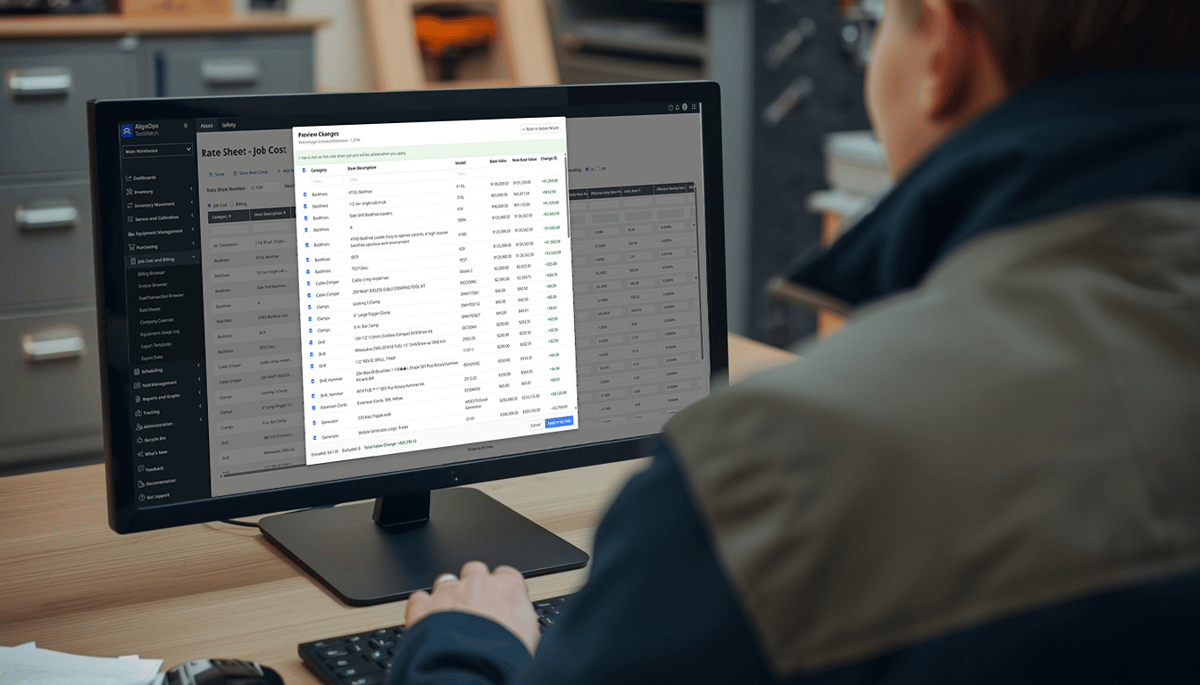
Diesel hit a record this fall and construction costs keep climbing. The new Rate Sheet Update Wizard in ToolWatch lets you bring a whole rate sheet up to date in one step.
Base values drive what you bill. When the cost of owning and running your equipment goes up and your rate sheet doesn't, the difference comes out of your margin.
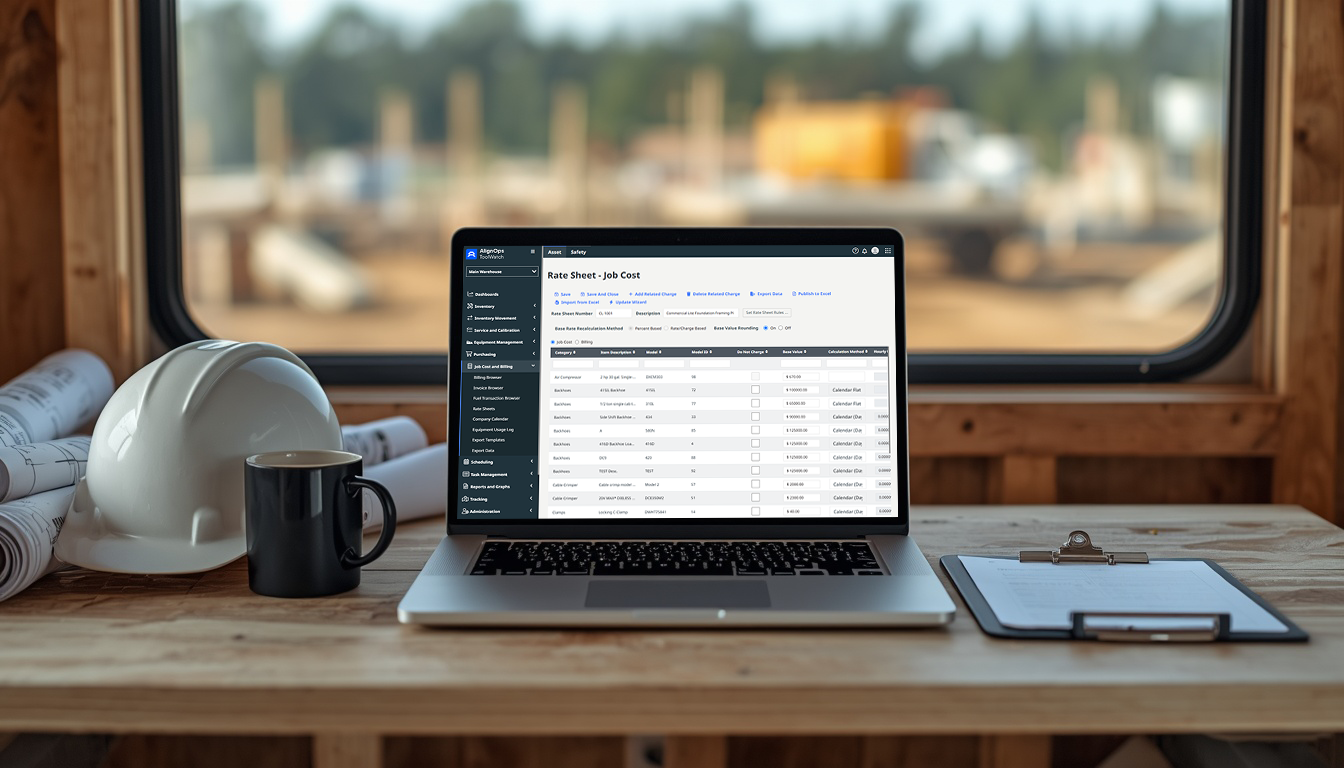
Until now, the only way to change base values on a ToolWatch rate sheet was one row at a time. That's fine for a handful of items. On a sheet with hundreds, it's an afternoon of work, and every row is another chance to mistype a number or skip one.
The Rate Sheet Update Wizard is a new feature in ToolWatch, AlignOps' tool and equipment management software, that updates the base values on an entire equipment rate sheet in one step. Choose a percentage, a flat dollar increase, your catalog value or your last purchase cost, preview every change, then apply. It's available to ToolWatch Pro and Enterprise customers.
Why Construction Companies Are Updating Equipment Rates Now

This year has been hard on equipment costs.
Fuel. U.S. diesel set an all-time weekly record in September, passing the previous high from June 2022 (OilPrice.com). Every machine that burns diesel costs more to run, and equipment rental companies typically build fuel into their hourly rates (ENR).
Materials. Construction input prices rose 11.2% from September 2025 to September 2026, the biggest yearly jump in nearly four years, according to Associated Builders and Contractors. ABC points to higher fuel prices and tariffed metals like iron and copper (BD+C).
Margins. The same ABC report found more than 1 in 4 contractors expect their profit margins to shrink over the next six months.
When what you pay goes up, what you charge jobs has to keep pace. If your rate sheet still reflects last year's costs, every job is absorbing the difference.
Why Equipment Rate Sheets Fall Behind
Nobody decides to bill from old numbers. It just happens.
You set up a rate sheet once, and then life gets in the way. Item costs go up. The catalog gets updated, but your existing rate sheets don't change with it. New equipment comes in at a different price than what you're billing from.
We hear about it on customer calls all the time:
- Rate sheets that haven't been touched in years.
- Base values entered one item at a time during onboarding.
- Exporting to Excel, editing, reformatting and re-importing, just to make a change across the sheet.
- A gap between what you actually paid for an item and the base value you're billing from.
Keeping up by hand just isn't realistic. The Update Wizard is built to fix that.
Four Ways to Update Base Values in Bulk
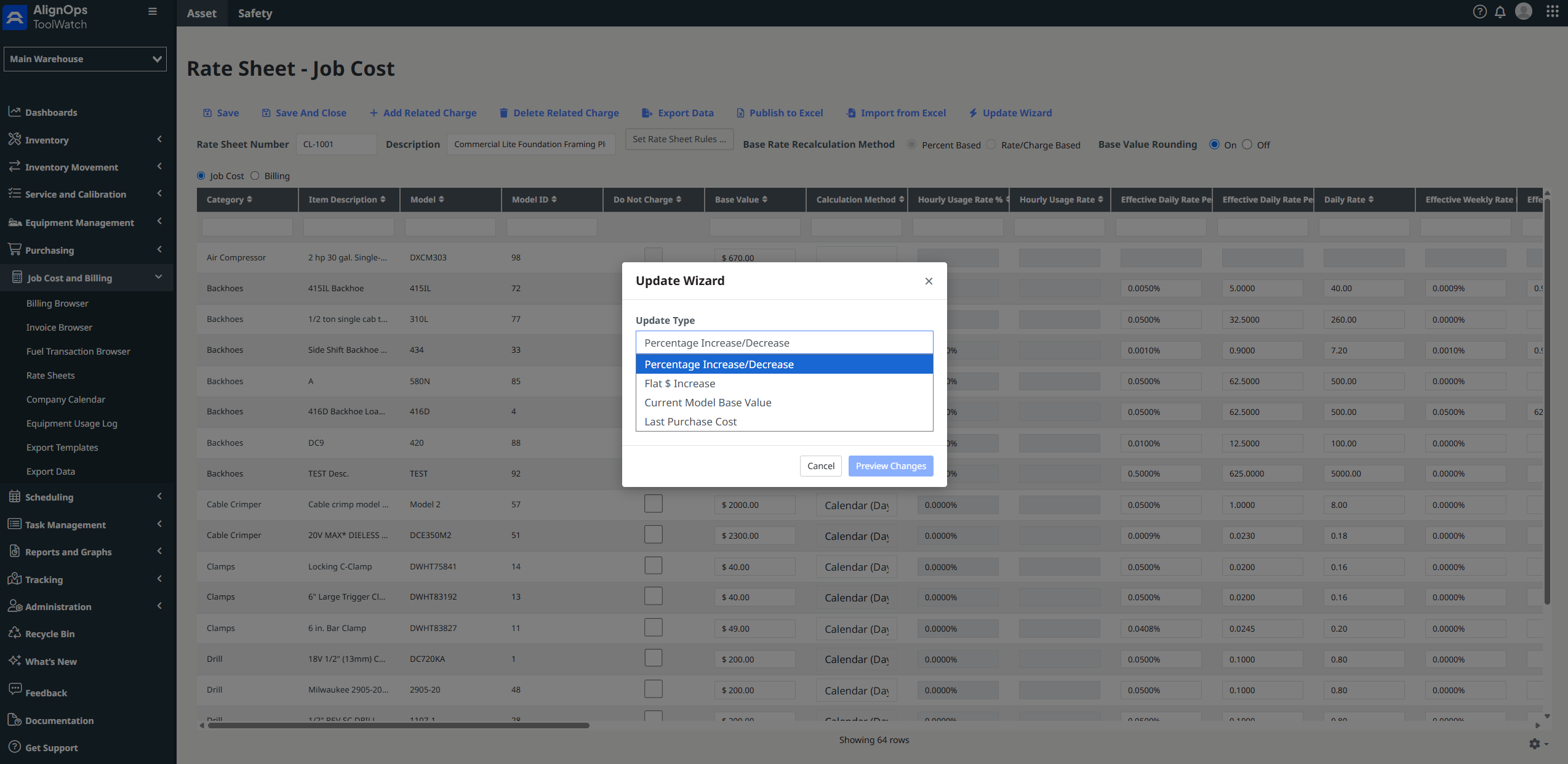
Open your rate sheet, click Update Wizard on the toolbar, and pick how you want the values to change.
- Percentage Increase/Decrease. Raise or lower every base value by a percentage. Type 5 to add 5%, or -5 to take 5% off. This is the one when costs have gone up across the board.
- Flat $ Increase. Add the same dollar amount to every base value, like a surcharge across the board.
- Current Model Base Value. Reset each row to the base value in your catalog. Use it when the catalog has been updated and the rate sheet hasn't caught up.
- Last Purchase Cost. Set each row to what you most recently paid for that item, so your rates reflect what your equipment actually costs you.
The last two don't need you to type anything. If an item has no catalog cost or no purchase history, the wizard sets that row aside instead of guessing. You'll see exactly which items need a cost before they can be priced.
How to Update a Rate Sheet in ToolWatch
Here's the whole process:
- Open the rate sheet and save any edits you've typed into the grid.
- Choose Job Cost or Billing, depending on which rates you want to change.
- Click Update Wizard on the rate sheet toolbar.
- Pick an update type, and enter a percentage or dollar amount if it needs one.
- Click Preview Changes and review the new value for every row.
- Uncheck any rows you want to leave alone.
- Click Apply.
See Every Change Before It's Saved
Nothing is saved until you click Apply.
Before that, you get a preview of every row: the current base value, the new value, and the dollar change. At the bottom you'll see how many rows will change and the total value change across the sheet.
Want to leave a few items alone? Just uncheck them. A rate increase across the whole sheet with three exceptions is still one step.
Changed your mind? Cancel makes no changes at all.
No Half-Finished Rate Sheets
The wizard applies one rule the same way to every row you leave checked. No typos, no skipped rows.
Updates are all or nothing. If any row fails, nothing on the sheet changes, so you'll never end up with a rate sheet that's half old numbers and half new ones.
It also catches bad input before it reaches your sheet. A percentage that would push values to zero or below gets refused, and so does an unreasonably large number.
Frequently Asked Questions
How do I raise equipment rates for inflation in ToolWatch?
Use Percentage Increase/Decrease in the Rate Sheet Update Wizard. Type the percentage, such as 5 for a 5% increase, preview the new base values, and apply. Every row you leave checked goes up by the same percentage.
Can I lower rates by a flat dollar amount?
No. Flat $ Increase only adds. To lower base values, use Percentage Increase/Decrease with a negative number, such as -5.
Can I undo a rate sheet update?
No. Apply saves right away, so the preview is your chance to check every number first. Cancel at any step makes no changes.
What happens if I run the wizard twice?
The changes stack. A 5% increase followed by another 5% isn't 10%, because the second run works on the already-raised values. Not sure a run went through? Check the Rate Sheet Updates report before running it again.
Does the wizard update Job Cost and Billing at the same time?
No. It only changes the one you're working on. To update both, run the wizard on each.
Do I need to save my rate sheet first?
Yes. The wizard works from saved values, so save any edits you've typed into the grid before you start.
How do I see who changed a rate and when?
Go to Reports > User Activity Reports > Rate Sheet Updates. It lists every base value change, whether it came from the wizard, a manual row edit or an Excel import.
Which ToolWatch Plans Include the Rate Sheet Update Wizard?
The Rate Sheet Update Wizard is available to ToolWatch Pro and Enterprise customers, since Rate Sheets come with the Job Cost and Billing module. You'll find the Update Wizard button on your rate sheet toolbar if you have permission to edit rate sheets. Don't see it? Check with your ToolWatch administrator.
With costs where they are, now's a good time to make sure your rates have kept up.
Already a ToolWatch customer? Reach out to your Customer Success Manager for a walkthrough.
Not using ToolWatch yet? Book a demo to see how Rate Sheets and the Update Wizard keep your billing current.